The
BookTrader feature allows you to view deep book data for a selected instrument,
and create and transmit orders. You can add the BookTrader to any page in WebTrader using the Preferences window
except Search .
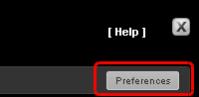
From any page in WebTrader, click
the Preferences button.
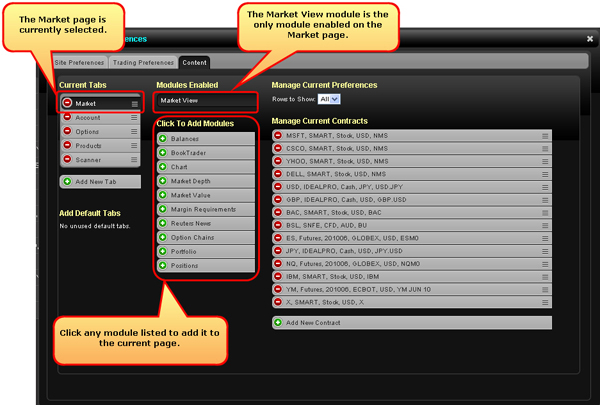
The Preferences window opens to the Content tab. In the figure below,
the Market page is the currently selected tab and the Modules Enabled
list shows that only the Market View module is enabled on that page.
In the Click the Add Modules section,
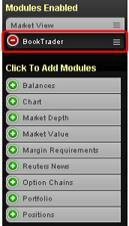
click BookTrader. The BookTrader
module is added to the Modules Enabled list.
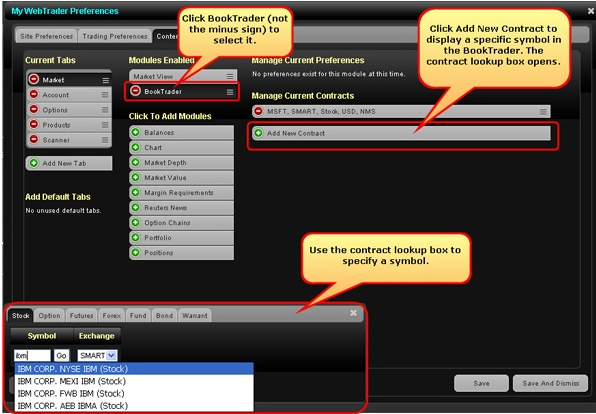
You can add a symbol to BookTrader
in the Preferences window or from the BookTrader module itself. Click BookTrader in the Modules
Enabled list to highlight it, then click Add
New Contract.
To remove symbols from the module, click the minus sign on the instrument
in the Manage Current Contracts list.
Click Save
and Dismiss in the lower right corner of the window to
save your changes and close the Preferences window.
To change the symbol in the BookTrader
module once it is displayed on the page, click Edit.
To change the exchange, use the Select Exchange drop-down.
In the box that appears, select an instrument. For instrument types
other than stock, define additional instrument parameters such as right,
strike and expiry (if needed).
Apply additional settings in the BookTrader
module:
Click Re-center
to keep the best bid/ask price or last traded price always
visible in the center of the BookTrader screen.
Change the default size by editing the
number in the Default Size field. Note that this is also defined for
each instrument type on the Trading Preferences tab in the Preferences
window.
Select a different exchange from the Select Exchange drop-down.