You can change the order of columns on the following tabbed pages and modules in WebTraders;
Market page - Use the Edit button
Options page - Use the Edit Columns button
Scanner results - Use the Edit Columns button
Positions module - Use the Edit button
Portfolio module - Use the Edit button
Options Chains module - Use the Edit Columns button
Market View module - Use the Edit button
To change the order of columns
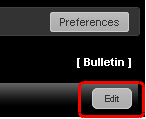
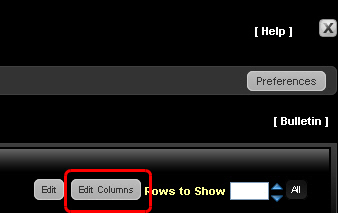
Click the Edit button or the Edit Columns button located on the right side of the page or module. (The Edit button turns into a Done button while you are editing.)
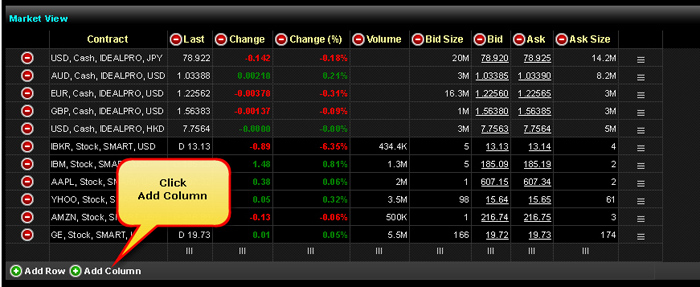
Click Add Column, located at the bottom left of the display with a green plus sign next to it.
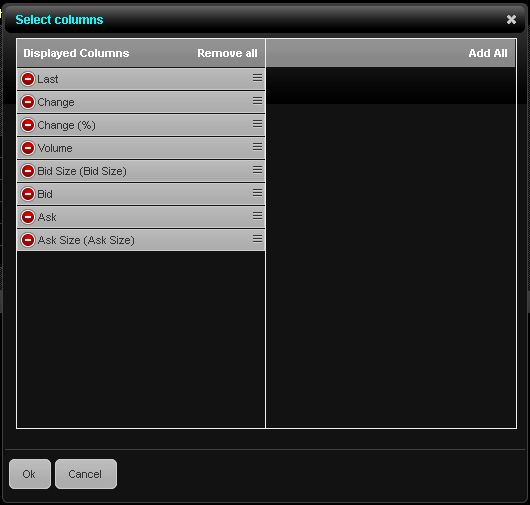
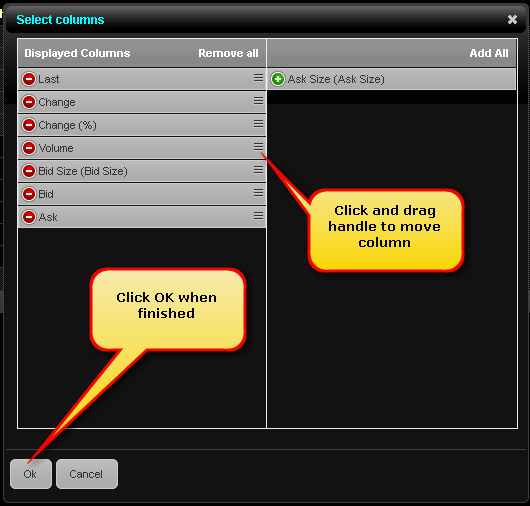
The Select Columns dialog opens.
Change the order of the columns in one of the following ways:
Click and drag the handle of a column in the list of displayed columns to the desired position.
You cannot click and drag to re-order columns on the Options page.
Click Remove all to remove all columns from the list of displayed columns, then click the green plus sign next to each column on the right that you want to add in the order in which you want the columns to appear on the page you are editing. Each column you add is added to the bottom of the list, which corresponds to the right- most column heading on the page.